The Typography view
A live specimen — headline, lead, body, lists, forms — where every font size is a scale step and every line height sits on the baseline grid. You do not type sizes; you select an element and step it along the scale.
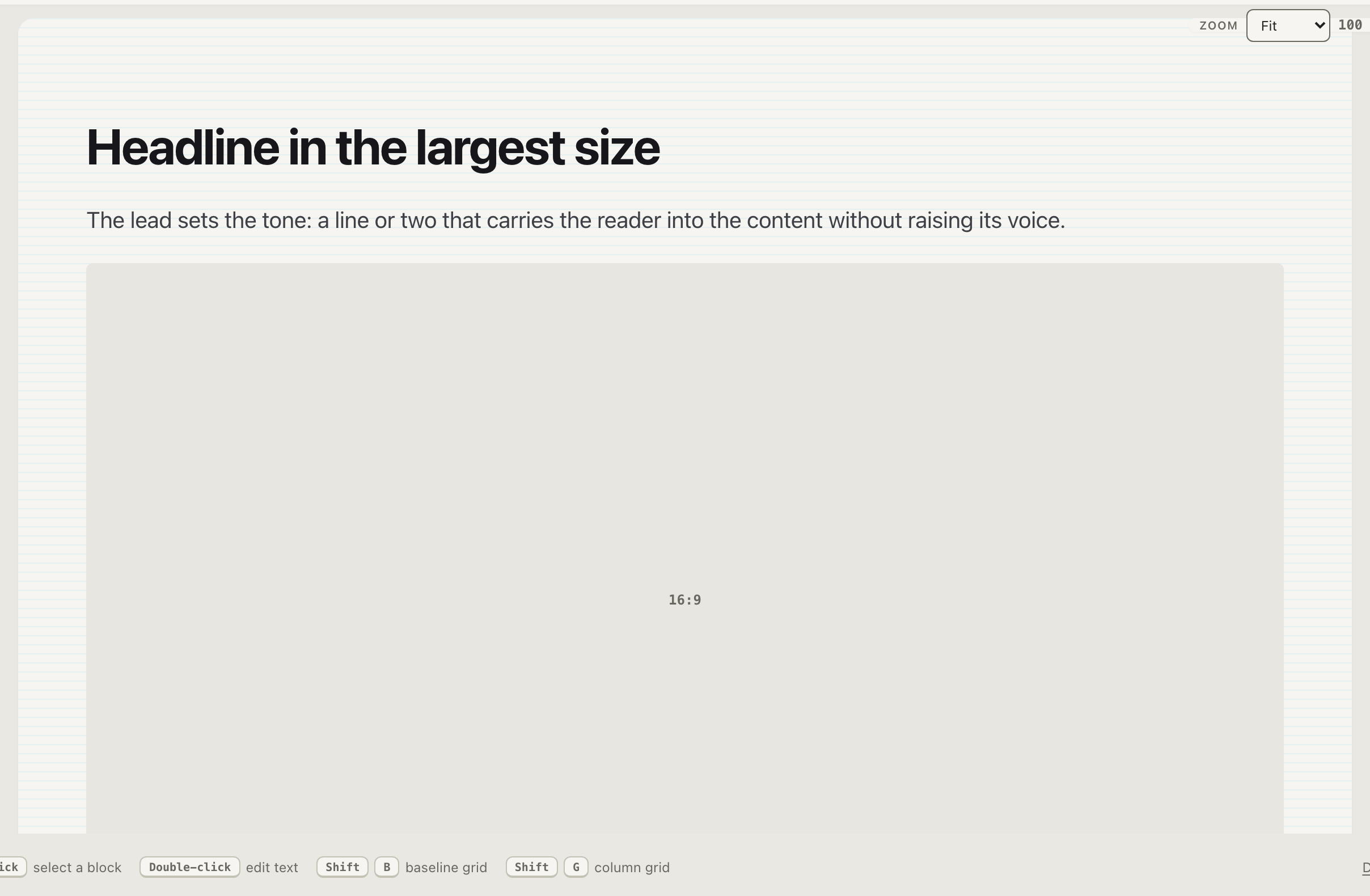
The toolbar

- Base: Fixed / Fluid — fixed uses the scale as-is; fluid interpolates the base between two viewport widths (below).
- Heading / Body fonts — system stack by default, or pick from a curated Google Fonts list; heading and body slots are independent.
- CSS unit — rem or px. The scale is defined against the base either way; rem keeps it responsive to user preferences.
- Baseline — shows the derived baseline unit with its derivation
spelled out:
8px (16/2). The baseline is base ÷ 2, set by the scale — the grid view displays it but does not own it. - Grid — overlays the column grid from the largest breakpoint as a read-only mirror (the Grid view is the single owner of columns).
Working in the specimen
Click a block to select it, double-click to edit its text. Then:
- ↑ / ↓ — step the font size along the scale.
- ← / → — step the line height in half-baseline increments.
- Shift+B — toggle the baseline raster behind the specimen.
- Shift+G — toggle the column overlay.
Elements of the same kind in the same row share their size — adjust one column heading and its siblings follow. The specimen text itself is content: edit it freely, and language switches will not overwrite it.
The scale card

The sidebar lists the full generated scale with rem values; checkmarks mark the levels the specimen actually uses. It is the same list your exports will contain — the specimen is a preview of the tokens, not a separate artifact.
Fluid mode

Fluid mode interpolates the base between a minimum and maximum viewport
(defaults 16→18px across 375→1280). Every scale value becomes a CSS
clamp() expression; the viewport bar lets you scrub the preview across
the whole span, with the grid breakpoints marked as jump points. The
fluid typography guides cover when fluid is
worth it and how the math works.
Zoom
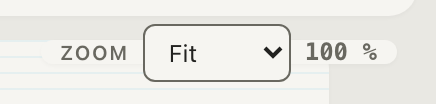
The floating zoom control scales the preview — fit, or 50–150 %. It is a lens over the workbench: zoom never touches your values or the export.